You’re squinting at your monitor again. Your neck aches. You’ve already adjusted your chair twice, moved the screen closer, and bumped the font size to 16. And it’s only 10 a.m.
If any of that sounds familiar, you might not have an ergonomics problem — you might have a vision problem. Specifically, you might need computer progressive lenses.
Most people have heard of progressive lenses. Far fewer know that there’s a specialized version designed specifically for the distances you work at every day — your screen, your keyboard, your desk, and that colleague across the room. These are called computer progressive lenses (also known as office progressives or occupational progressives), and they can genuinely change how comfortable your workday feels.
This guide covers everything: what they are, how they differ from standard progressives, who benefits most, what to expect during the adjustment period, how to choose the right pair, and the honest pros and cons no one else is telling you.
What Are Computer Progressive Lenses?
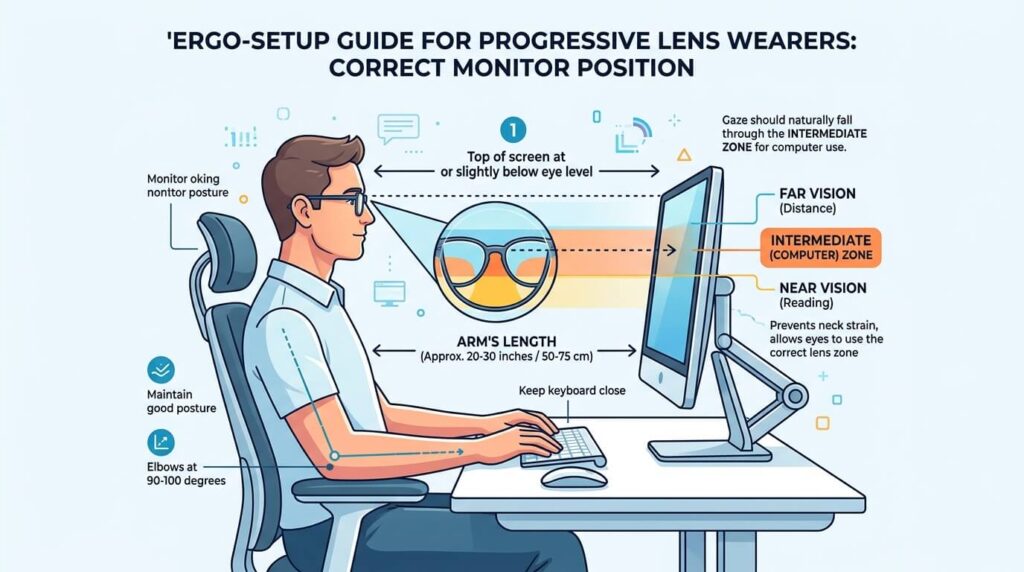
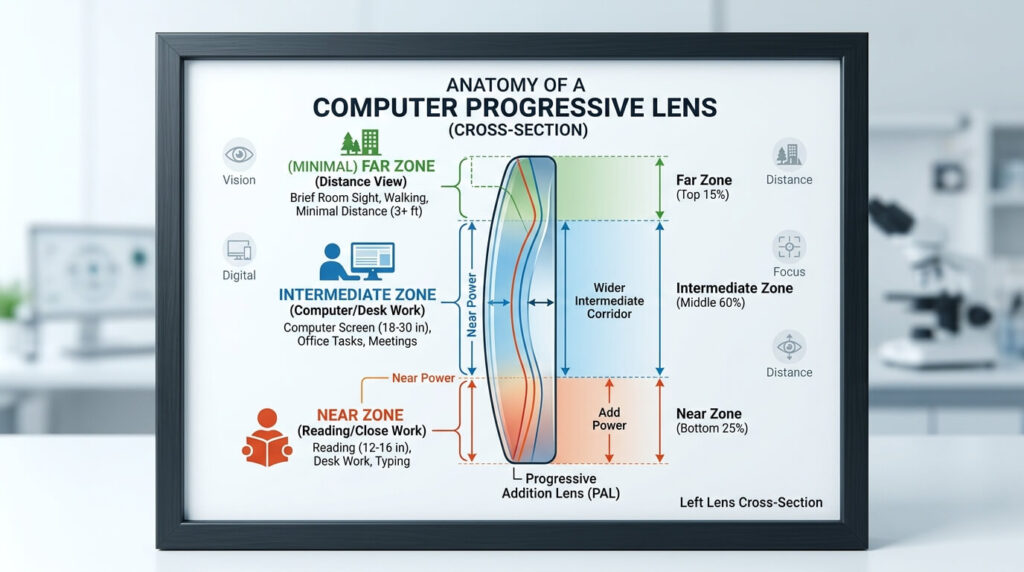
Computer progressive lenses are a specialized type of multifocal lens engineered for the distances most relevant to modern desk and screen work. Unlike standard progressive lenses — which span your full visual range from distance (far) down to reading (near) — computer progressives concentrate their optical power on the intermediate and near zones.
Think of it this way: a standard progressive lens is like a highway that goes from city to city. A computer progressive is an urban expressway — highly optimized for the distances between 16 inches (your documents) and roughly 10–13 feet (a whiteboard or colleague). It doesn’t need to cover the highway because, at work, you’re rarely looking at anything beyond that range.
The result is a wider, more comfortable viewing corridor at computer distance, with dramatically less distortion at the edges — a common frustration with standard progressives.
The Lens Zones Explained
| Zone | Standard Progressive | Computer Progressive |
|---|---|---|
| Far distance (beyond 10 ft) | Large zone at top | Minimal or none |
| Intermediate (arm’s length) | Narrow “corridor” | Wide, generous zone |
| Near (reading) | Lower portion | Generous lower portion |
| Edge distortion | More pronounced | Significantly reduced |
This redistribution of optical zones is what makes computer progressives so valuable for people who spend 6+ hours a day in front of a screen.
Who Actually Needs Computer Progressive Lenses?
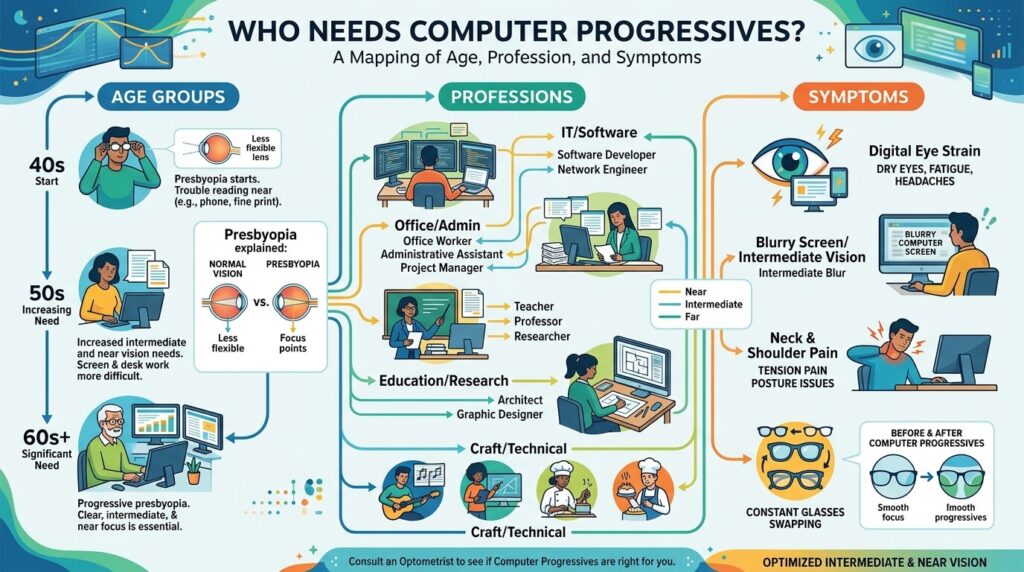
Not everyone does — but more people than you’d think. Here are the groups most likely to benefit significantly.
People with Presbyopia Who Work at Screens
Presbyopia — the gradual loss of near-focusing ability that typically begins between ages 40 and 45 — is the most common reason people reach for progressive lenses in the first place. The natural lens inside your eye becomes less flexible over time, making it harder to shift focus smoothly between distances.
If you have presbyopia and spend significant time at a computer, standard progressives often force you to tilt your head backward to look through the intermediate zone, which strains your neck and shoulders over hours of work. Computer progressives solve this by putting the intermediate zone exactly where your eyes naturally rest when you look at a screen.
People Who Already Wear Progressive Lenses but Still Struggle at Work
This is the most overlooked group. Many people assume that if they already have standard progressives, they don’t need a second pair. But a growing number of optometrists recommend computer progressives as a dedicated “work” pair, worn at the desk and swapped for standard progressives when driving or spending time outdoors.
The reason is straightforward: no single lens can perfectly optimize every visual distance. A dedicated pair for your work environment will always outperform a one-size-fits-all solution.
Remote Workers and Heavy Screen Users of All Ages
You don’t have to be over 40 to experience eye strain from screen work. Digital eye strain (sometimes called computer vision syndrome) affects people of all ages who spend 4 or more hours a day staring at digital screens. Symptoms include blurred vision, headaches, dry eyes, neck pain, and difficulty focusing after looking away from the screen.
For younger people, computer progressives may be prescribed with minimal or no distance correction — primarily to help reduce the constant focusing effort (accommodation) required during long screen sessions.
People Who Work in Environments with Multiple Visual Demands
Think dentists, surgeons, architects, or anyone whose work requires them to look at both close-up and intermediate distances in rapid alternation. Computer progressive lenses give these users a wide, clear zone that covers everything within their typical working environment without constant head-tilting or squinting.
Computer Progressive Lenses vs. Standard Progressive Lenses: The Real Differences
This is where most articles fall short. Yes, both are progressive lenses. But the differences matter enormously for your daily comfort.
Field of View
Standard progressives give you a narrow corridor of clear vision at intermediate distances. The useful width of that zone is often only 1–2 centimeters through the optical center. Move your eyes to the side, and distortion kicks in fast.
Computer progressives flip this priority. The intermediate zone is wide — you can move your eyes naturally across a 24-inch monitor without tilting your head. This alone is a game-changer for most users.
Posture
Because standard progressives put screen distance in the lower-middle portion of the lens, you often have to tilt your chin up to look through the right zone. Do this for eight hours and your neck and upper back pay the price.
Computer progressives are designed for natural, forward-facing head position at a screen. You look straight ahead, through the heart of the lens, at your monitor. No chin-tilting required.
Distance Range
This is the honest trade-off: computer progressives sacrifice far-distance clarity. You cannot comfortably drive while wearing them. They’re work glasses, not all-day glasses. For most people, this is a non-issue — they’re worn at the desk and swapped when needed.
Adaptation Period
Because the distortion zones in computer progressives are smaller and better placed for seated work, most people adapt to them faster than to standard progressives. Many users report feeling comfortable within a few days, compared to the 2–4 weeks often needed for standard progressives.
Types of Lenses for Computer Work: A Practical Comparison
It helps to understand the full spectrum of lens options before deciding what’s right for you.
Single-Vision Reading Glasses are calibrated for very close distances — typically 12–16 inches. They’re fine for reading a paperback but force you to lean uncomfortably close to a monitor. Not ideal for all-day screen use.
Standard Progressive Lenses cover far, intermediate, and near all in one lens. Excellent for everyday life. Not optimized for sustained computer work due to the narrow intermediate channel and the head-tilting required.
Computer Glasses (Single-Vision, Intermediate Focus) are set to one specific distance — usually your screen. They’re sharp and distortion-free at that distance, but you’ll need to remove them to read documents on your desk or see a colleague at 10 feet.
Computer Progressive Lenses (Occupational Progressives) offer the sweet spot: a wide clear zone from your keyboard to about 10–13 feet. They handle the full range of your work environment without the compromises of the other options.
Anti-Fatigue Lenses are single-vision distance lenses with a slight reading boost at the bottom. They help younger users who experience eye strain but don’t yet need full progressives.
The Science Behind Why Screens Are Demanding on Your Eyes
Understanding why computer work strains your vision helps explain why specialized lenses exist in the first place.
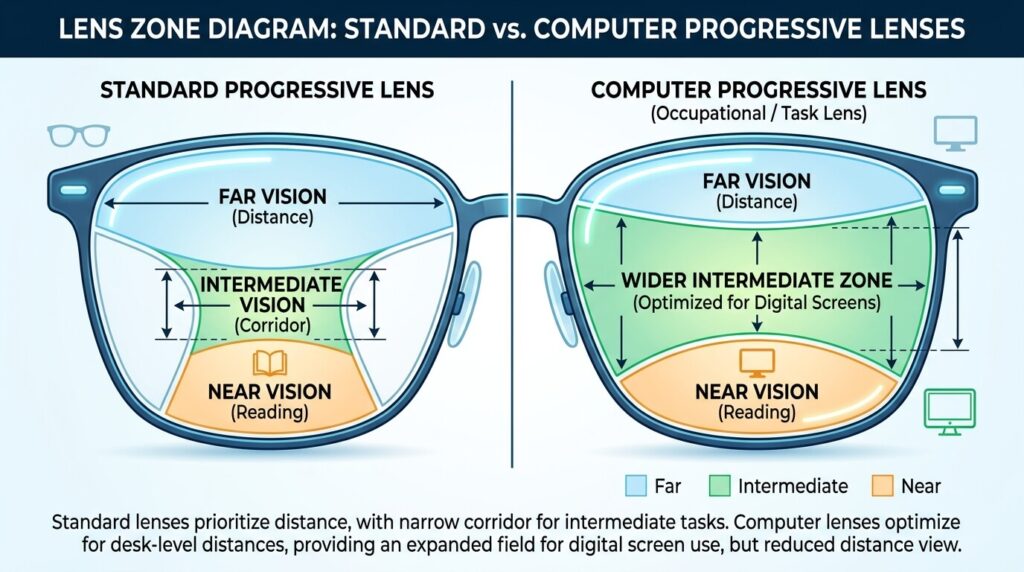
Your eyes focus on a screen at what optometrists call “intermediate” distance — typically 20–26 inches. This is neither the close distance you’d use for reading (12–16 inches) nor the far distance you’d use for driving (beyond 20 feet). It’s an in-between zone that requires sustained muscular effort from the tiny ciliary muscles inside each eye.
During normal activity, your eyes shift focus constantly — near, far, near again. This variation actually gives your focusing muscles a chance to rest. When you stare at a screen for hours, those muscles lock in at one distance and fatigue accumulates. Add to this the fact that people blink significantly less while looking at screens (studies suggest the blink rate drops from around 15–20 times per minute to as low as 5–7 times per minute), and you have a recipe for dry, tired, uncomfortable eyes.
Computer progressive lenses help by reducing the accommodative effort required at screen distance — your eyes can relax into the intermediate zone of the lens rather than constantly working to maintain focus.
What to Expect During the Adjustment Period
Here’s what most guides don’t tell you clearly enough: the adjustment experience for computer progressives is usually easier than for standard progressives — but it still takes a little time.
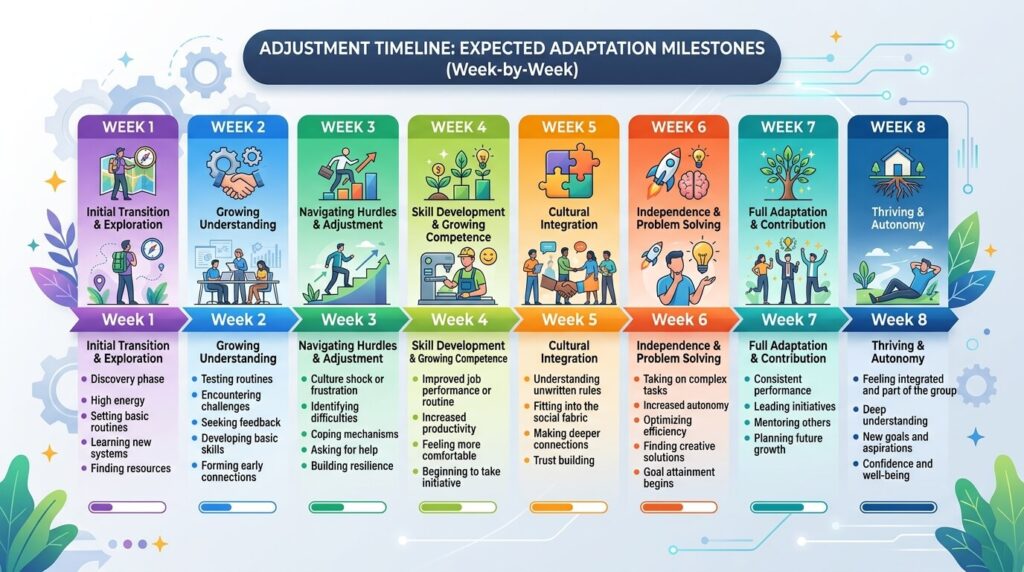
The First Few Days
You may notice mild visual “swimming” as you move your head. Objects at the far periphery of your vision might look slightly off. This is normal and expected. Your brain is learning where to look for each distance.
The key is to wear them consistently. Putting the glasses on for two hours and then switching back to your old glasses will dramatically slow the adaptation process.
Week One
Most users report a significant improvement by the end of the first week. The intermediate zone should begin to feel natural — looking at your monitor no longer requires conscious thought about head position.
Week Two and Beyond
By week two, the majority of users are fully comfortable. At this point, you can judge whether the prescription and lens design are genuinely working for your visual needs.
If discomfort persists beyond two weeks, it’s worth returning to your optometrist. The issue may be as simple as the glasses not sitting in the right position on your face, or it could indicate that the prescription or lens design needs adjustment.
Practical Tips for a Faster, Easier Adjustment
Set up your workspace before you start. Position your monitor so the top of the screen is at or just below eye level. This ensures your natural forward gaze lands in the middle of the intermediate zone.
Wear them all day at work, from day one. Consistency is the single most important factor in adapting to any progressive lens. Wear them from the moment you sit at your desk to the moment you leave.
Move your head, not just your eyes. This is counterintuitive at first, but with progressive lenses you should point your nose at what you want to see clearly, rather than just darting your eyes sideways.
Be patient with near-distance reading. For text on paper or documents on your desk, you’ll look through the lower portion of the lens. Some users need a few days to find the right head angle for this zone.
Tell people around you. If a colleague walks up to your desk, turning your whole head to look at them may feel slightly exaggerated for the first few days. That’s fine — you’re adapting.
Common Mistakes People Make with Computer Progressive Lenses
Most dissatisfied users made one of these mistakes. Avoid them and your experience will be dramatically better.
Mistake 1: Skipping the specialist consultation. Computer progressives need a specific prescription measurement that factors in your exact working distance — how far you sit from your screen, the height of your monitor, even the type of work you do. A standard progressive prescription is not the same as an occupational progressive prescription. Don’t assume one can substitute for the other.
Mistake 2: Buying the cheapest available lens. The optical engineering of progressive lenses is complex, and not all computer progressives are equal. Budget lenses may use older designs with narrower zones and more distortion. From reputable optical brands, the design quality difference between entry-level and premium occupational progressives is genuinely noticeable.
Mistake 3: Wearing them while driving. Computer progressives are not designed for distance. Wearing them while driving is unsafe and gives you an inaccurately negative impression of the lenses. Keep your standard progressives or single-vision distance lenses for driving.
Mistake 4: Giving up after two days. Two days is not enough time for your visual system to adapt. Some people feel perfect immediately; others need the full two weeks. Don’t judge the lenses until you’ve worn them consistently for at least a week.
Mistake 5: Incorrect frame fitting. If the frame sits too low or too high on your face, you’ll be looking through the wrong part of the lens for your work distance. Have your optician check the fitting. This is not a “set it and forget it” situation — fitting matters enormously with progressive lenses.
Mistake 6: Using the wrong measurements for online orders. If you’re buying computer progressives online, you need accurate pupillary distance (PD) measurements and, ideally, your segment height. These measurements are more critical for occupational progressives than for single-vision lenses. Many online retailers offer measurement tools, but getting your PD verified in-person adds accuracy.
Lens Features to Consider When Buying Computer Progressive Lenses
The base lens design is just the beginning. These add-on features can significantly impact daily comfort.
Anti-Reflective (AR) Coating
This is close to non-negotiable for computer use. Without it, your lenses reflect light from your monitor directly into your eyes, contributing to glare and fatigue. A high-quality AR coating reduces this reflective glare dramatically and makes your lenses easier for others to see through — which matters during video calls.
Blue Light Filtering
The evidence on blue light and eye damage is still developing, and the jury is out on whether blue light blocking lenses meaningfully reduce digital eye strain. That said, some users report less eye fatigue and better sleep when wearing blue light filtering lenses. They add modest cost and no visual downside, so many people choose to include them.
Photochromic Lenses
These lenses darken in bright light and clear indoors. For people who move frequently between indoor and outdoor environments, photochromic computer lenses can be worth considering — though note that most photochromic lenses don’t darken significantly behind car windshields.
Lens Material
Polycarbonate is lightweight, impact-resistant, and includes some UV protection. High-index lenses are thinner and lighter — valuable for stronger prescriptions. Trivex offers similar benefits to polycarbonate with slightly better optical quality. Your optician can advise which material suits your prescription and frame choice.
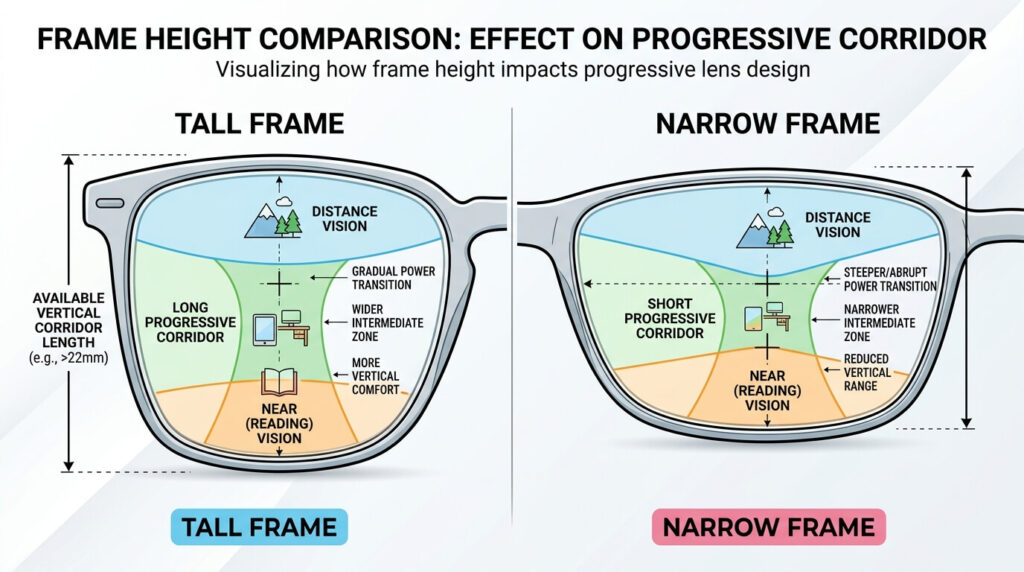
Frame Width and Height
For computer progressives, frame height matters. A taller lens gives more room for the progressive corridor — meaning more usable intermediate zone. Narrow frames, while fashionable, can significantly reduce the functional area of the lens. Aim for a lens height of at least 28–30mm for best results.
How to Get the Right Prescription for Computer Progressive Lenses
Your standard eyeglass prescription is not automatically a computer progressive prescription. Here’s what the process should look like.
Step 1: Comprehensive eye exam. This covers your basic refractive error (nearsightedness, farsightedness, astigmatism) and checks your near-focusing ability and binocular vision.
Step 2: Working distance measurement. Your optometrist should ask — or you should tell them — your exact working distance. Bring your laptop to the exam if possible, or at least know how far you typically sit from your monitor.
Step 3: Discussion of your visual tasks. Do you spend most of your time on a single large monitor? Multiple monitors at different distances? Reading documents on a desk? Looking at a whiteboard? The lens design that works best varies with the specific demands of your workspace.
Step 4: Add power determination. The “add” in your prescription is the additional magnification for near vision. For computer progressives, this may be slightly different than for standard progressives — often prescribed at a near-intermediate range rather than at close reading distance.
Step 5: Pupillary distance and segment height. These measurements tell the lab exactly where to place the optical centers of the lens relative to your pupils. For progressive lenses, accuracy here is critical.
Computer Progressive Lenses and Specific Professions
For Remote Workers and Home Office Users
The rise of remote work has created a massive new population of heavy computer users who may not have had formal workstation setups before. Home offices often lack the ergonomic attention of corporate environments — monitors positioned poorly, lighting inconsistent, and no IT department to adjust equipment. For this group, computer progressives paired with a well-positioned monitor can provide dramatic relief.
For Healthcare Professionals
Dentists, surgeons, and other clinicians work at very specific and consistent distances. Many have discovered that occupational progressive lenses — sometimes with custom-designed intermediate zones — give them the precision they need in clinical settings without constant head-tilting.
For Architects and Designers
Moving between detailed drawings, a desk monitor, and a larger display — sometimes at arm’s length — is a natural fit for the wide intermediate zone of computer progressives.
For Teachers and Presenters
Looking from notes on a lectern down to a screen and back up to a class at 20 feet is actually at the boundary of what computer progressives cover well. For this specific situation, some professionals use occupational progressives designed with a slightly extended far zone — sometimes called “enhanced reading” or “extended office” designs.
Digital Eye Strain: When Glasses Aren’t the Only Answer
Computer progressive lenses help enormously, but they work best as part of a broader approach to managing digital eye strain.
The 20-20-20 Rule: Every 20 minutes, look at something 20 feet away for 20 seconds. This gives your focusing muscles a rest. It sounds simple because it is — and it genuinely helps.
Monitor Position: The top of your screen should be at or slightly below eye level, roughly 20–26 inches from your face. Too close or too far changes your required working distance and shifts which part of the lens you’re looking through.
Lighting: Avoid working with a bright window directly behind or in front of your monitor. Overhead lighting should be roughly the same brightness as your screen. Extreme contrast between screen and background accelerates eye fatigue.
Screen Settings: Increase text size, adjust contrast, and reduce blue-light output in the evening through your operating system’s settings. These are free adjustments that complement your lens corrections.
Blink Deliberately: Consciously remind yourself to blink during long focus sessions. Some users find that placing a small sticky note at the top of their monitor with “Blink!” on it sounds silly but works remarkably well.
Buying Computer Progressive Lenses: In-Store vs. Online
Both options are legitimate, but they suit different situations.
In-Store (Recommended for First-Time Buyers)
If you’ve never worn progressive lenses, buying in-store gives you access to expert fitting, an optometrist who understands your specific prescription needs, and the ability to return for adjustments if something isn’t right. The additional cost typically buys you this expertise and support, which is genuinely valuable during the adaptation period.
Online (Good for Experienced Progressive Wearers)
If you’ve worn progressive lenses before and have an accurate, current prescription, reputable online retailers can offer significant savings on computer progressives. Look for retailers that offer:
- A real optical review of your prescription before fulfillment
- Accurate PD measurement tools or the option to submit a professionally measured PD
- A clear return or remake policy (most legitimate optical retailers offer at least 30-day returns)
- Specific occupational or office progressive lens options — not just “standard progressives” relabeled
Real User Experiences: What the Adaptation Actually Looks Like
Sarah, a content manager who spends 9 hours a day at a dual-monitor setup, described her first week with computer progressives: “The first day was strange — my peripheral vision felt slightly wrong. But by day three I stopped noticing it entirely. By the end of the first week I was genuinely surprised by how much less tired my eyes were at 5 p.m.”
Mark, a 52-year-old financial analyst, put it differently: “I’d been adjusting my standard progressives all day — tilting my head, leaning forward. I didn’t even realize it had become a habit until I stopped doing it. The computer progressives just put the clear zone where I was looking. It should have been obvious, but it wasn’t.”
These experiences are common. The adjustment is real but manageable. The payoff — reduced neck tension, less eye fatigue, more comfortable workdays — is also real.
Conclusion
Computer progressive lenses are one of those solutions that, once you try them, you wonder how you managed without. They address a specific, common visual problem — the mismatch between what your eyes naturally want to do during screen work and what standard lenses allow — with an elegantly engineered solution.
They’re not for everyone. If you’re young, have no refractive errors, and experience only mild eye strain, lifestyle changes may be enough. But if you’re over 40, wear progressives, and spend your days at a screen, a dedicated pair of computer progressive lenses may well be the most impactful upgrade you make to your work setup this year.
Talk to your eye care professional about your specific working environment. Bring your laptop. Measure the distance to your monitor. Ask about occupational progressive designs specifically. And give yourself a full two weeks after receiving your new glasses before you form your final opinion.
Your eyes spend a lot of time working hard for you. This is one way to genuinely give something back.
Frequently Asked Questions
What are computer progressive lenses?
Computer progressive lenses (also called occupational progressives or office progressive lenses) are multifocal lenses designed specifically for intermediate and near distances — the ranges most relevant to desk and screen work. Unlike standard progressive lenses, they devote a larger optical zone to your computer screen distance, resulting in a wider, clearer view and reduced distortion for the typical work environment.
How are computer progressive lenses different from regular progressive lenses?
Standard progressive lenses cover your full visual range — from far distance to close up — in a single lens. Computer progressives concentrate optical power on intermediate (arm’s length) and near distances, sacrificing far-distance vision in exchange for a much wider, clearer intermediate zone. This makes them better suited for screen work but not appropriate for activities like driving.
Who should consider computer progressive lenses?
Anyone who spends 4 or more hours per day at a computer and notices eye strain, neck pain from head-tilting, or difficulty seeing the screen clearly through standard progressives. They’re particularly beneficial for people in their 40s and beyond who have presbyopia and work at screens regularly.
How long does it take to adjust to computer progressive lenses?
Most people adapt within one to two weeks of consistent daily wear. Some adapt within a few days. Wearing them consistently — rather than switching between old and new glasses — is the most important factor in how quickly your eyes adjust.
Can I use computer progressive lenses for driving?
No. Computer progressives are designed for intermediate and near distances. They do not provide adequate clarity for far distances and are unsafe for driving. Keep your standard progressive lenses or single-vision distance glasses for driving and other activities requiring good far vision.
What is the cost of computer progressive lenses?
Pricing varies significantly by retailer, lens brand, and add-on coatings. In the US, expect to pay anywhere from $150–$600+ for frames and lenses combined. In-store, premium brands with anti-reflective coating typically fall in the $300–$500 range. Online retailers can offer meaningful savings if you have an accurate, current prescription.
Do I need a special prescription for computer progressive lenses?
Yes. While the base prescription comes from your standard eye exam, your optometrist needs to factor in your specific working distance when calculating the add power and lens design for computer progressives. Inform your eye doctor about your screen distance, the nature of your work, and any specific visual challenges you face at your workstation.
Can younger people benefit from computer progressive lenses?
Yes. While presbyopia-related issues predominantly affect people over 40, younger heavy screen users can develop significant digital eye strain. Anti-fatigue lenses (a related lens type with a slight reading boost) are often recommended for users in their 20s and 30s, while true computer progressives may be appropriate for those in their late 30s and beyond with specific presbyopia symptoms.
Are computer progressive lenses available online?
Yes, from several reputable online optical retailers. For first-time buyers or those with complex prescriptions, an in-person purchase is strongly recommended. Experienced progressive lens wearers with a current prescription and accurate PD measurement can order online with good results, provided they use a retailer with a clear remake policy.
What lens coatings are recommended with computer progressive lenses?
Anti-reflective (AR) coating is highly recommended — it reduces screen glare significantly. Many users also choose blue light filtering. UV protection is standard on most quality lenses. If you work in variable lighting environments, photochromic coatings (lenses that darken outdoors) are worth considering.